
Drawing Molecules#
Molecules are built and edited with the Draw Tool, which allows for “free-hand” sketching of new molecules.
Tip
New in 2.0 You can also use the new Template Tool which makes it easier to attach functional groups or assemble inorganic and organometallic complexes.
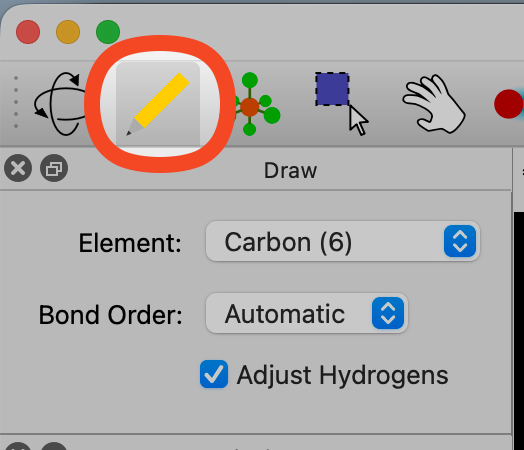
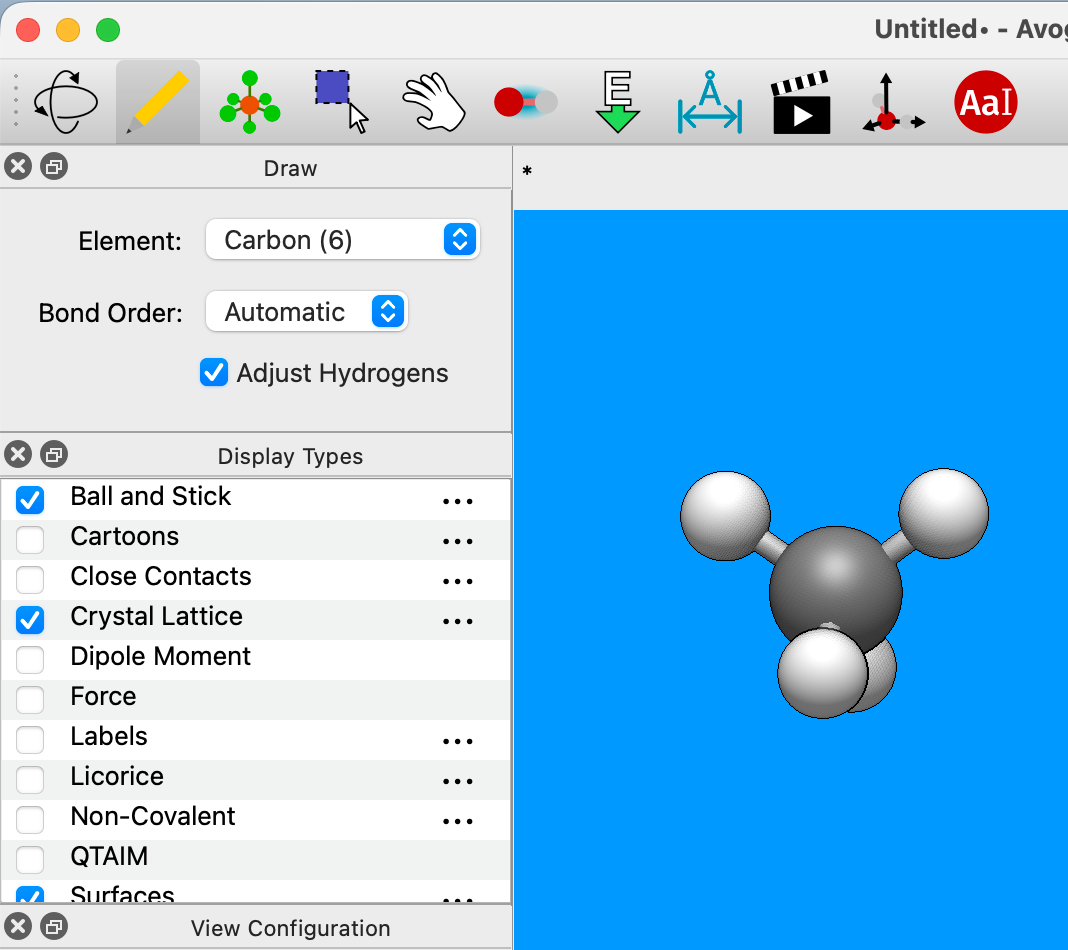
With the Draw Tool selected, left-clicking on the view pane will begin your journey into molecule creation. A left-click will create a carbon atom. A right-click on the atom will delete it.
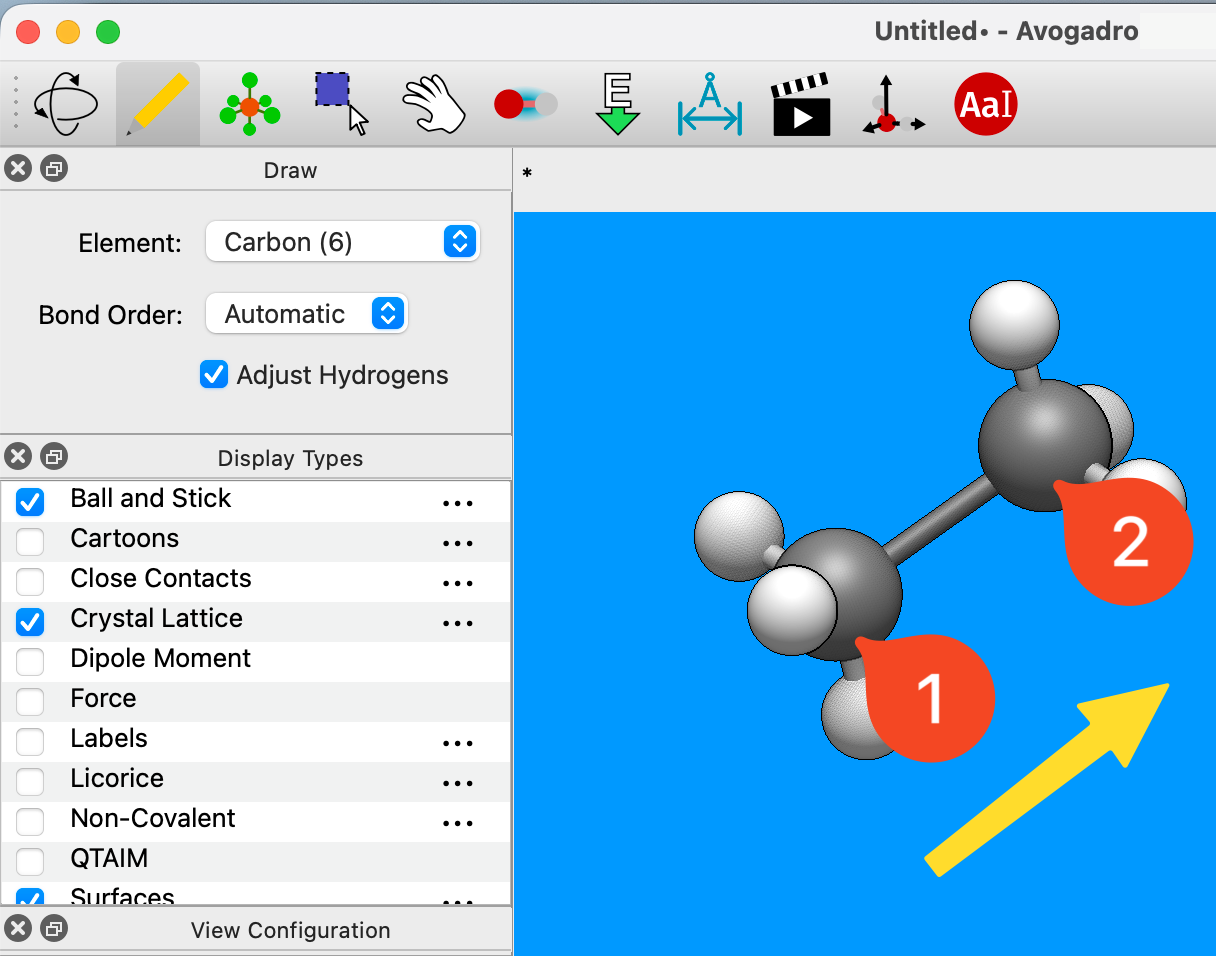
Left-clicking the initial atom and dragging your mouse will create a second carbon atom with a bond from the initial atom.
Avogadro uses carbon as the default element. A different element can be selected through the Element drop-down menu in the Draw Pane. While the Draw Tool is active, typing an atomic symbol (e.g. O for oxygen, or As for arsenic) is a shortcut for changing the selected element.
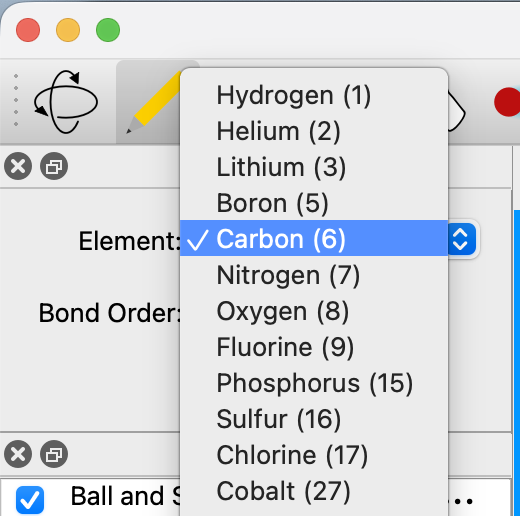
Let’s say you wanted to create water. You can either type in O, or select “Oxygen (8)” from the drop-down menu, and then click on the (by default black) view pane.
Left-clicking on an atom that has already been generated will also change the element. In this case, clicking on the initial carbon atom changed it into an oxygen atom.
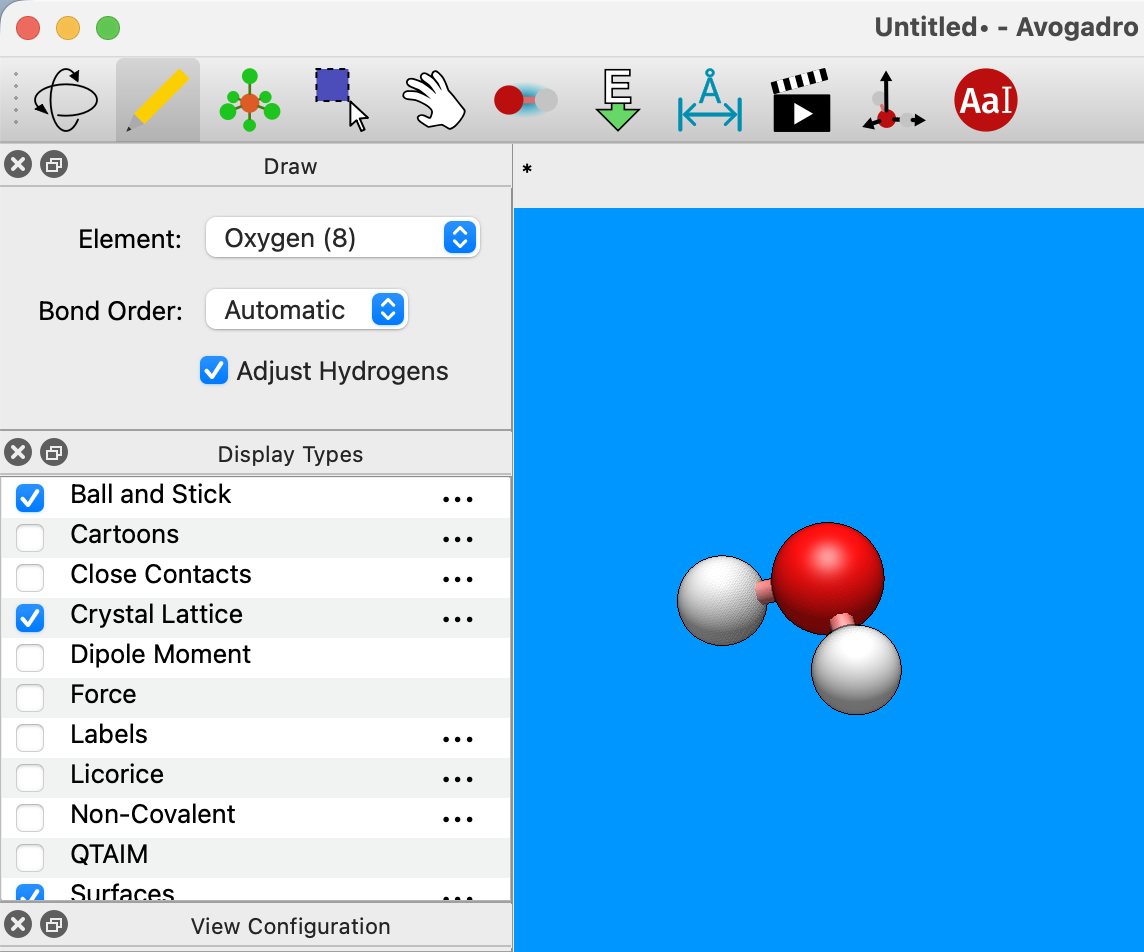
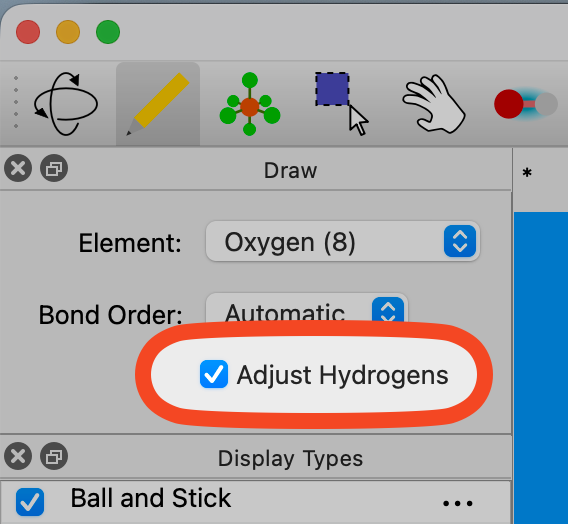
If the Adjust Hydrogens box in the Draw Pane is checked, hydrogen atoms in the molecule will be automatically added and removed to satisfy valency (as shown above).
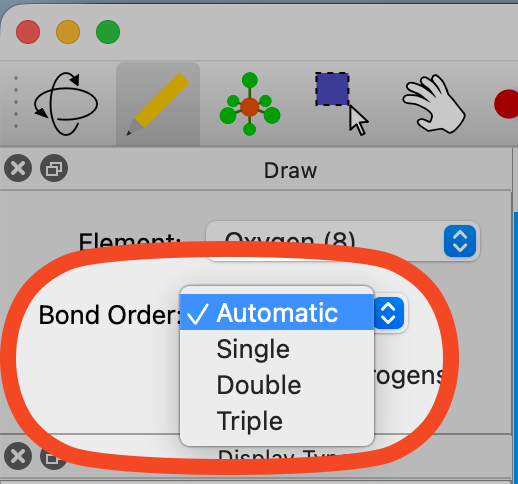
The bond order of newly created bonds is set in the Bond Order drop-down menu of the Draw Pane, or by typing the numbers “1”, “2”, or “3”. The order of an existing bond can be changed by left-clicking on it, which cycles through single, double, and triple bonds. Right-clicking on a bond deletes the bond completely.
Tip
New in 2.0 The default bond order is “Automatic,” which means the order will adjust appropriately as you increase or decrease the length of the bond you are creating.
Creating carbon dioxide#
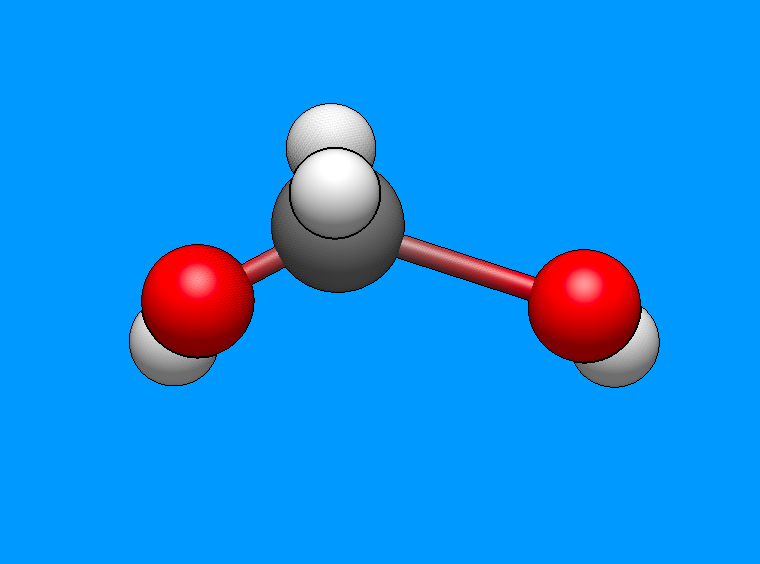
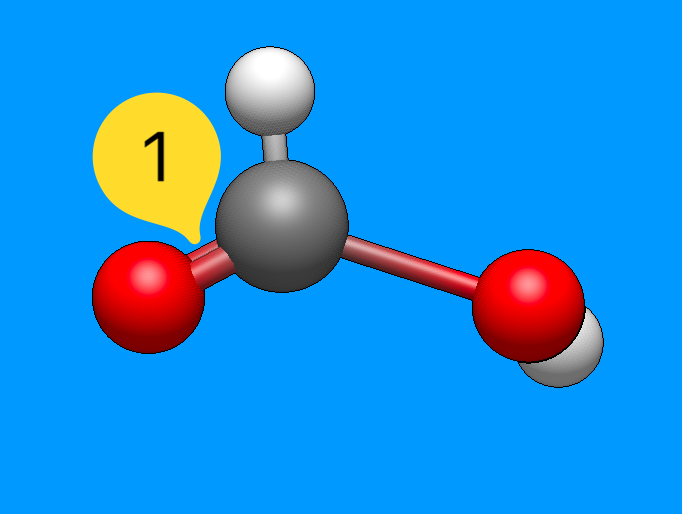
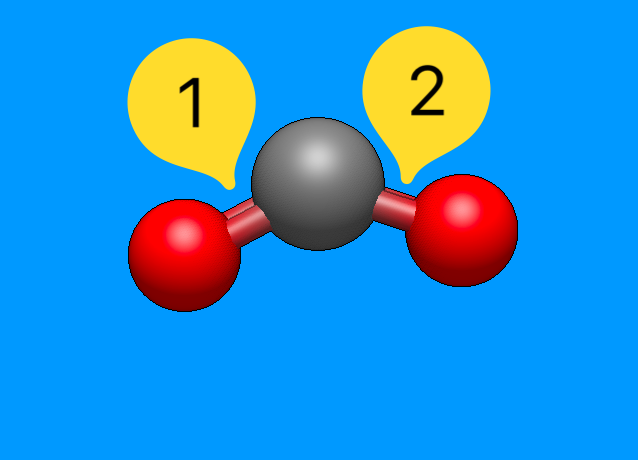
Begin drawing the “O-C-O” structure. After the structure is drawn, all you need to do is left-click in the middle of the bonds. Left-clicking on the bonds will create a double bond, as shown below. (Clicking on a bond changes the bond order from single ⇒ double ⇒ triple ⇒ single, etc.)
Tip
New in 2.0 When clicking on an atom to change the element or clicking on a bond to change the bond order, Avogadro will attempt to adjust the bond length if one end of the bond is “free” (e.g., only connected to hydrogen atoms).
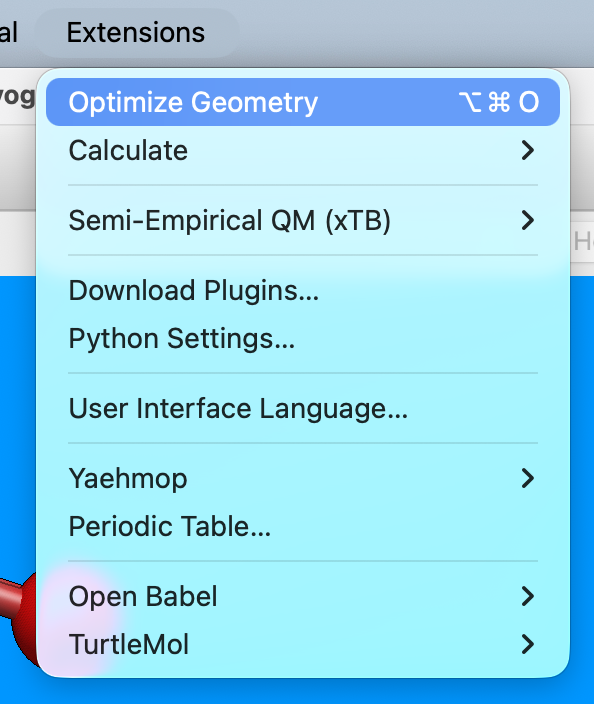
The molecule you have drawn will probably not look very tidy or realistic. Once you’ve created your molecule, you can quickly optimize its geometry using an Extension. Selecting the Extensions menu, and clicking Optimize Geometry will provide your molecule with proper bond lengths and angles.
You now know the basics of drawing a molecule in Avogadro!
See Also#
Draw Tool – Full documentation for the Draw Tool
Template Tool – Attach functional groups or build metal complexes
AutoOptimization Tool – Interactively optimize geometry while editing
Optimizing Geometry – Overview of geometry optimization methods in Avogadro