The Plugin Manager#
The Plugin Manager is used to install, update and remove plugins. It can be found under Extensions > Manage Plugins…
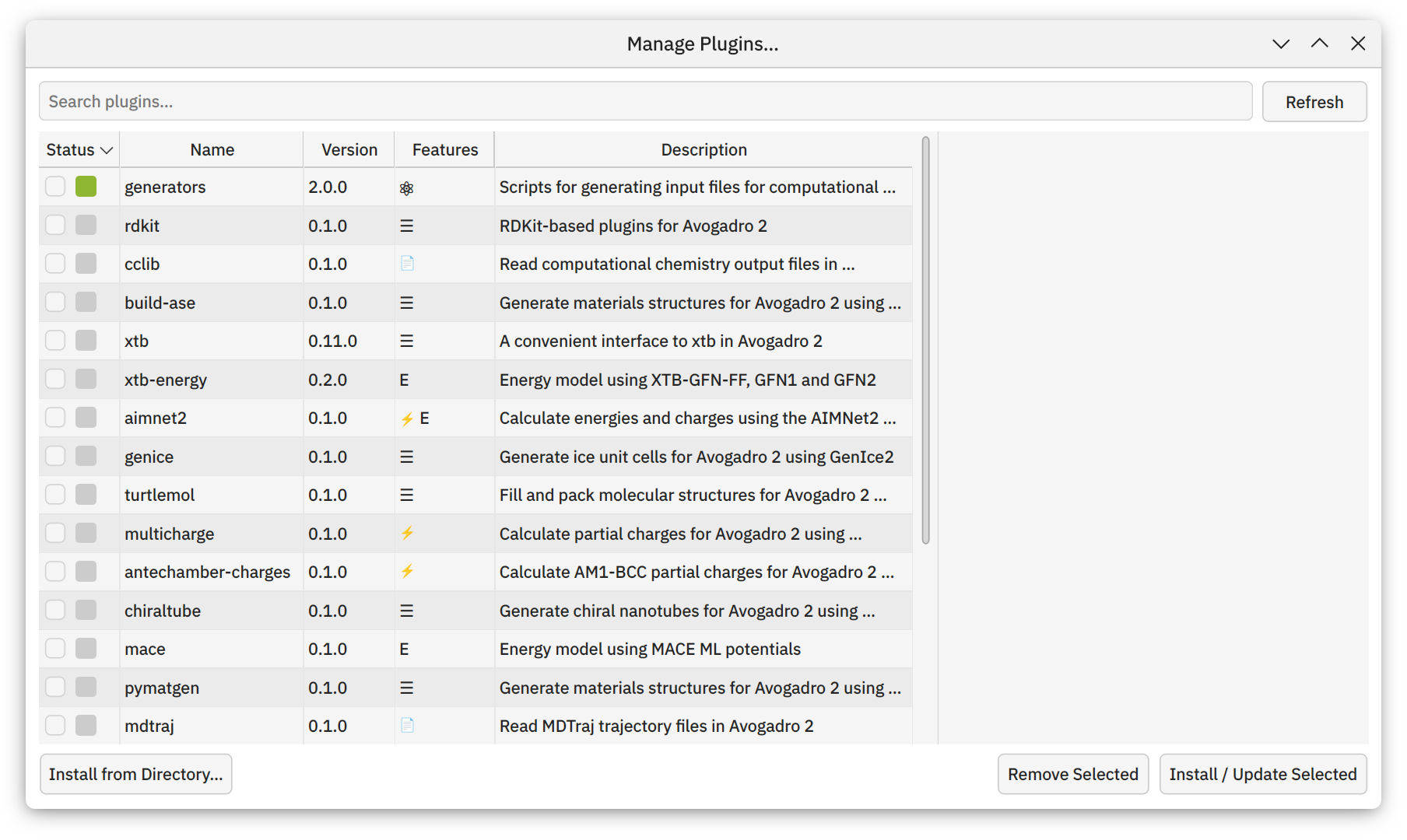
The Status column shows the current installation status of each plugin using emoji:
➕ Not installed, available from the online repository
✅ Installed, up to date
❗ Installed, update available
📁 Installed, local only
The status is indicated via icons that vary in appearance according to your platform.
The Features column shows the different types of feature that each plugin provides, also using emoji:
Symbol |
Feature |
Functionality |
|---|---|---|
⚡ |
Electrostatic Models |
Models to calculate partial charges or electrostatic potentials |
E |
Energy Models |
Additional models for the AutoOptimization Tool |
📄 |
File Formats |
Parsers for chemical file formats that Avogadro doesn’t know |
⚛ |
Input Generators |
Input file generators for computational chemistry programs |
☰ |
Menu Commands |
Additional items for the menus that can carry out all sorts of tasks |
Some plugins may provide more than one type of feature.
Hover over the icons in the Status or Features column with the mouse to get a text description.
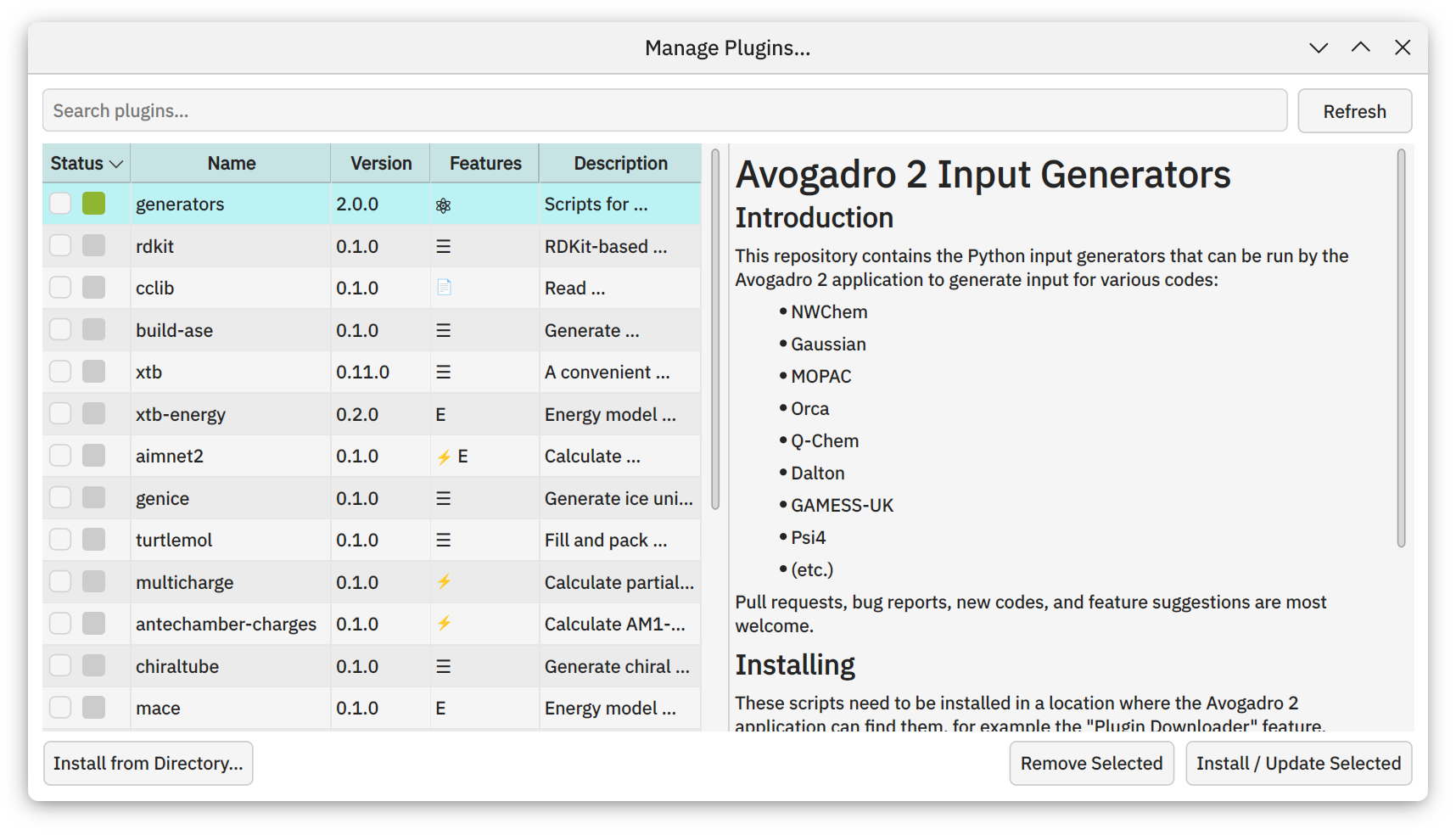
Click the row of a plugin to select it and display detailed information for the plugin in the pane on the right-hand side of the dialog:
Tip
Click and drag the separator between the Description column and the details pane to see the amount you want of each.
Use Ctrl and click to select multiple plugins and carry out the same operation on all of them.
Installing plugins#
From the plugin index#
Select one or more plugins from the list and click Install / Update Selected to install them.
The progress of the installation is shown in the details pane.
As long as Avogadro has access to the web, the list of plugins is automatically populated with the information from the plugin index. The plugins themselves are not hosted by the Avogadro domain – the index contains URLs at which the source code of each plugin can be found, usually a GitHub repository.
During installation, the plugin is downloaded from the source repository and installed along with any supporting dependencies the plugin needs to run.
Warning
While the Avogadro team makes an effort to vet submissions (including updates) before approval, this is done on a best-effort basis only and the Avogadro team takes no responsibility for the contents of third-party plugins.
Since plugins may run any Python code they like, and are not currently sandboxed, there is always a risk that a plugin may carry out a malicious attack on your system, or do unintended damage due to a bug. You are encouraged to assess the safety of each plugin individually, separately from Avogadro itself, as you would for any open-source software.
At the same time, a number of processes help to ensure that you get what you expect when you download a plugin:
All plugins added to the index, and all updates to plugins, require explicit approval from the Avogadro team
Automated review of plugin submissions is carried out by bots, specifically targeting security. These assist, rather than replace, the manual review process
The source code obtained from the URL in the index is hashed so that it cannot just be changed by plugin authors without submitting an update to the index
If the ability for the user to install plugins (to their user data directory) is a security risk in your system, consider blocking Avogadro’s network access. On Linux, the Flatpak edition of Avogadro offers a convenient way to do this, for example.
From the local system#
If you have a folder on your system that contains a plugin – perhaps you wrote it, or someone you know sent it to you – you can install it by clicking the Install from Directory… button and selecting the plugin folder.
Wherever possible, local plugins are installed by creating a symlink in the plugins directory that points to the source location. This is very convenient when developing plugins yourself. Otherwise, the plugin files are simply copied to the plugins directory.
Install location#
Plugins are installed to the plugins folder within Avogadro’s user data folder, the location
of which is determined by the platform:
Linux and BSD:
~/.local/share/OpenChemistry/Avogadro/plugins/macOS:
~/Library/Application Support/OpenChemistry/Avogadro/plugins/Windows:
C:/Users/<USER>/AppData/Local/OpenChemistry/Avogadro/plugins/
Each plugin is stored in its own subfolder.
On startup, the plugins folder is checked, and if Avogadro finds new plugins that are not installed, it will offer to install them. However, it is generally not recommended to make changes to the contents of the plugin folder yourself, and installing a plugin from the local system is best done using the method described above.
The plugins folder, and the rest of the user data folder, is usually not emptied when Avogadro is uninstalled.
Updating plugins#
Plugins that have a newer version available on the index than is currently installed on your system are marked as such.
Update by selecting them and clicking Install / Update Selected.
Removing plugins#
Click the Remove Selected button to uninstall plugins.
You will be asked whether you would like to keep or delete the plugin’s files. If you choose to keep them, the plugin’s subfolder will remain in the plugins folder.
For locally installed plugins that are linked to with a symlink, the symlink is always deleted, but the source directory is unaffected.
If you experience problems with the plugin framework, you can remove all of them and start fresh by deleting the entire of the plugins folder – Avogadro will create it again when it next starts.